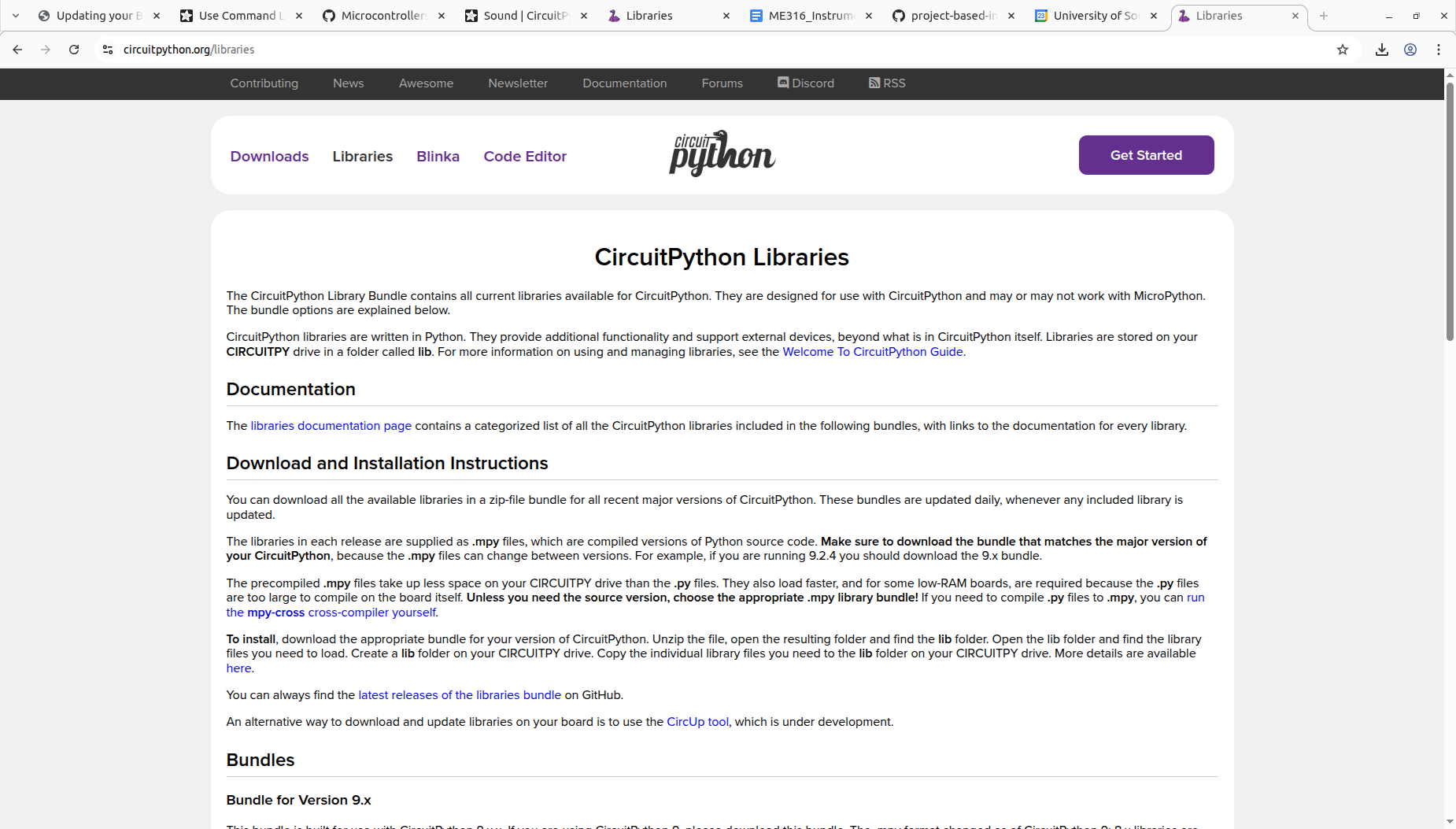
One issue you’re going to run into when you run certain codes is that you won’t have some of the modules on your CPB/CPX. To fix this you need to download the CircuitPython Libraries[30]. You need to download the appropriate version: 6.x, 7.x or 8.x. The figure below is a screenshot of the libraries homepage on the CircuitPython website.
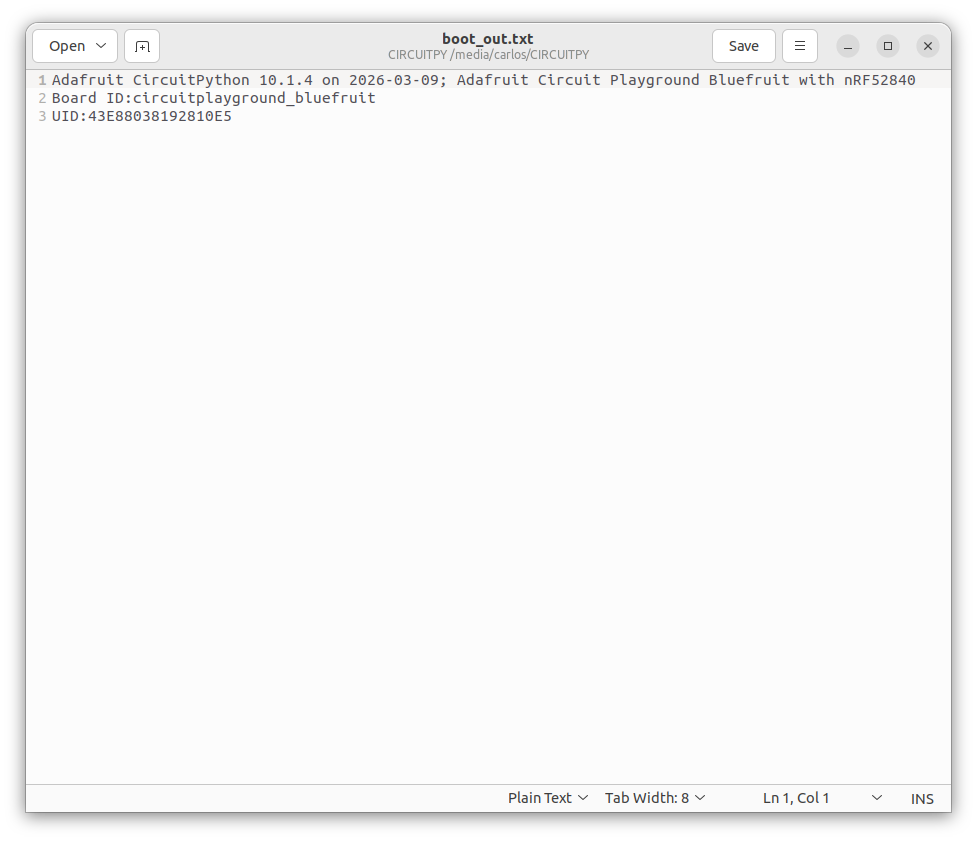
How do you know what version of CircuitPython you have? Well head over to your CIRCUITPY drive and open the boot_out.txt file and it will tell you the version. The Figure below shows an example boot_out.txt file. In this case the version is 10.1.4 so, you would download the 10.x version of the libraries.
Figure7.2.2.Example boot_out.txt file showing the version of CircuitPython
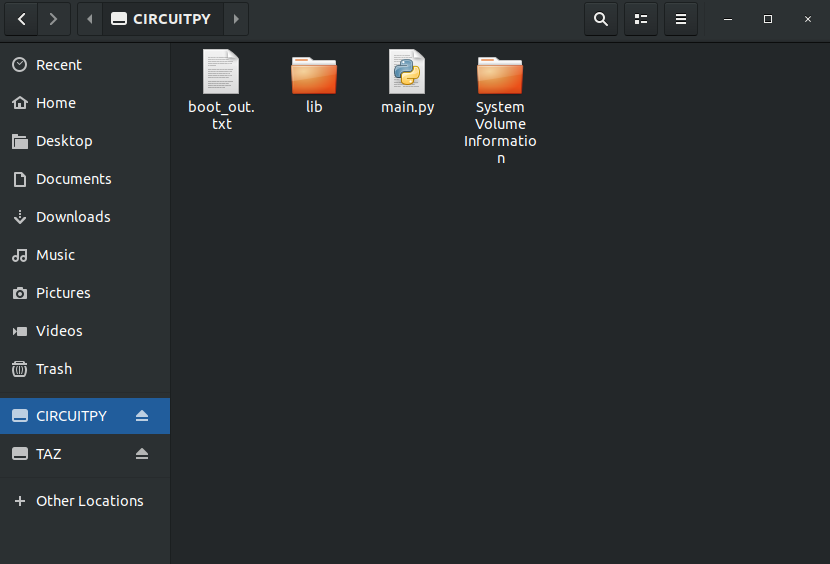
Note that this is the same version as the .UF2 file installed back in the Getting Started labs (See Chapter 6). When you download the modules it will download a .zip file. Extract the .zip file on your desktop computer and then open the lib folder on your desktop and your CIRCUITPY. You then need to transfer the modules (ONLY THE ONES YOU NEED) from your desktop to your CPX/CPB lib folder. The reason why you can’t copy the entire folder is because the CPB/CPX only has 2MB of flash and the CircuitPython download is 4.1 MB at the time of this writing. If your CIRCUITPY drive does not have a lib folder you can easily create one as shown in the Figure below.
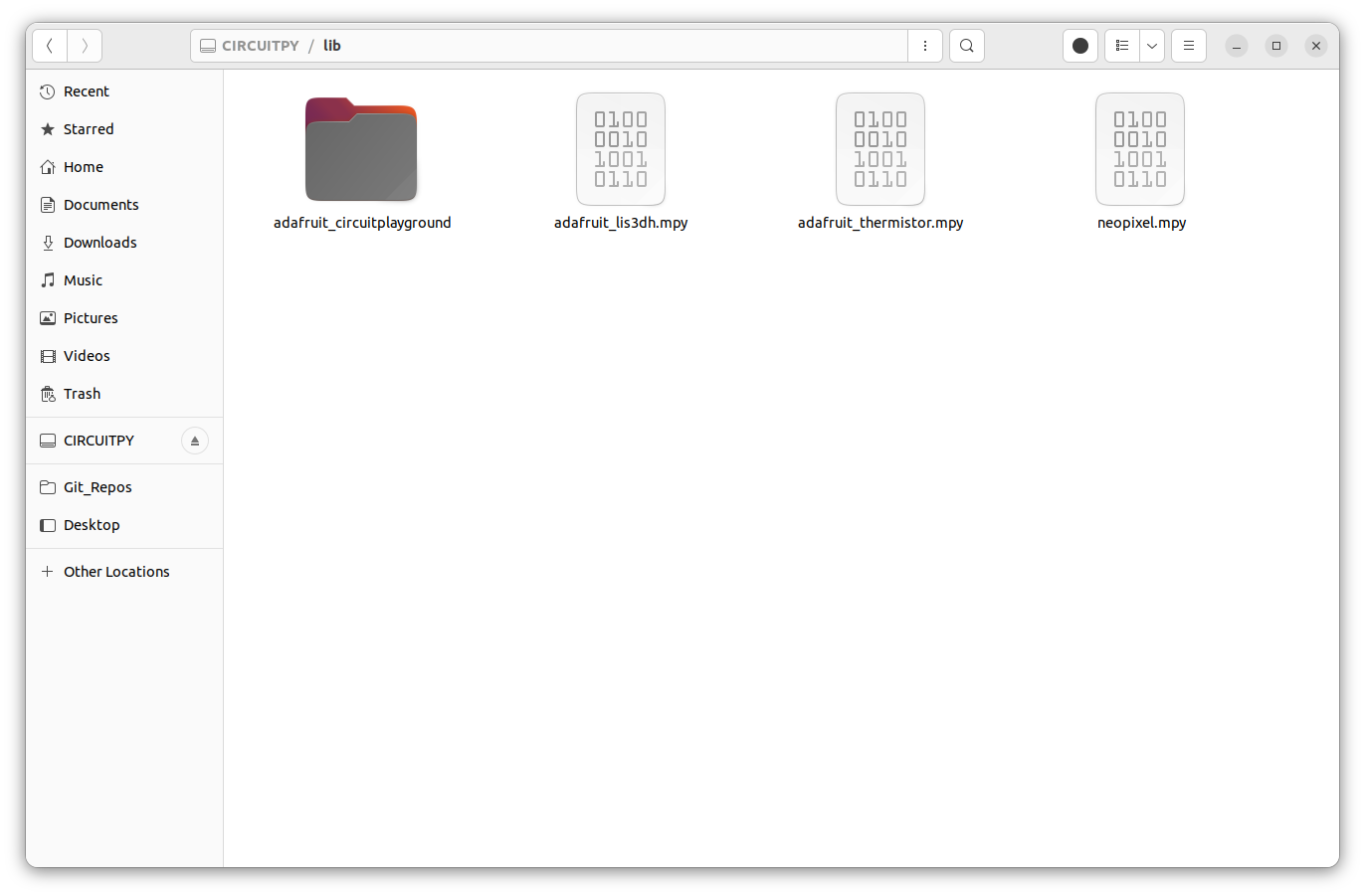
After extracting the zip folder to your computer you can begin dragging files over to your CPX/CPB. The Figure below shows an example lib folder full of modules that have been dragged from the desktop to the CIRCUITPY drive.
Figure7.2.4.Example lib folder on CIRCUITPY drive with modules dragged over from desktop
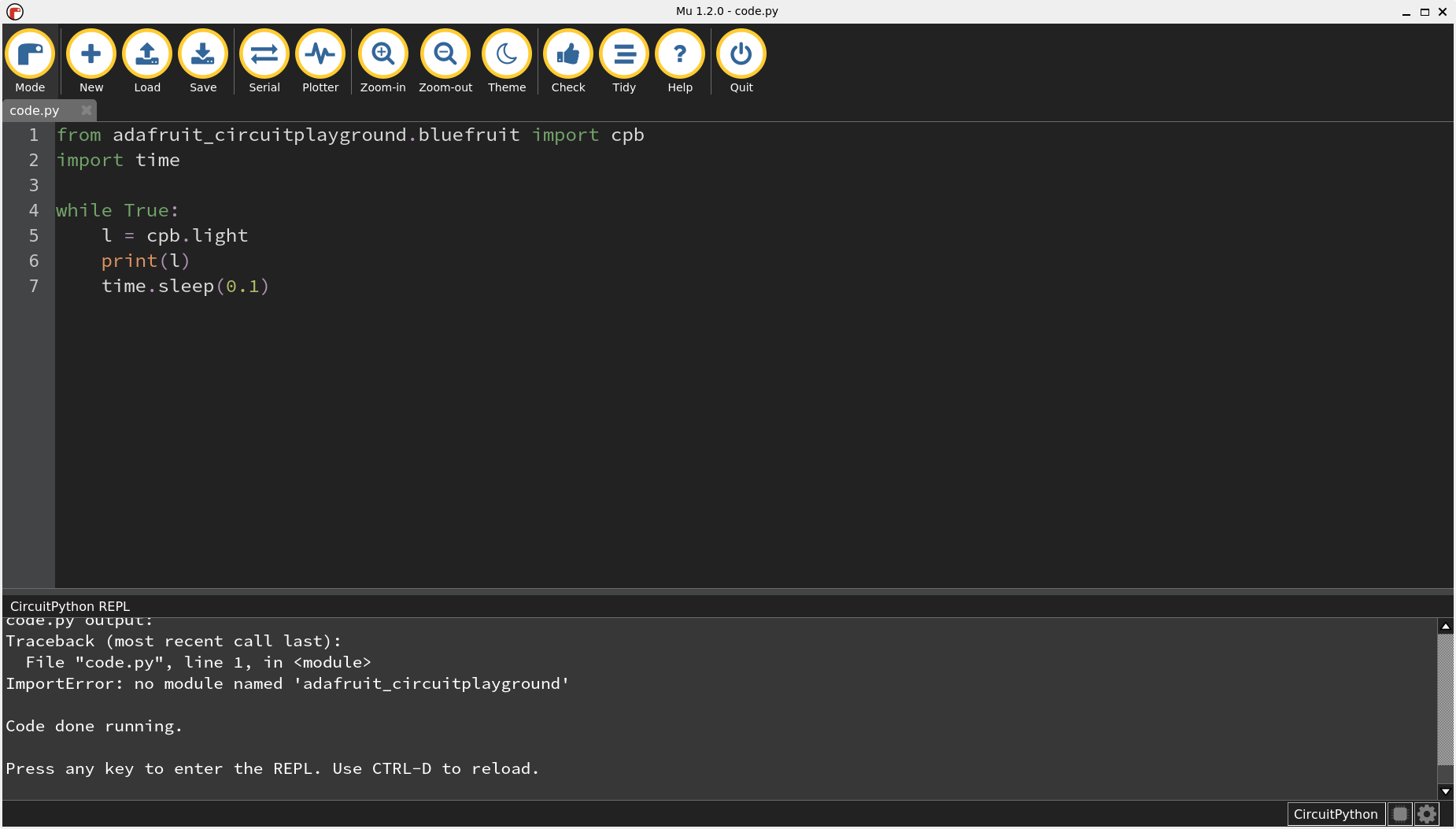
The follow up question of course is Which modules do I need? The answer to that question is in the code. When you run a code that needs a specific module, the Serial monitor will say ImportError: No module named ’x’. In this case you will then know to install the module ’x’. You can also look at the import statements at the top of the code to see which modules are being imported and then make sure you have those modules installed. The figure below is an example of that error where the code is specifically looking for the module named adafruit_circuitplayground. In this case, the user would need to copy that specific module from the desktop to the CIRCUITPY drive lib folder.
Note that it’s possible to import too many modules on the CPX/CPB and run out of memory. It turns out that the CPB has much more memory then the CPX. Run the commands below to see how much memory your CPX/CPX has left.
import gc
gc.collect()
print(gc.mem_free())
At the time of this writing, the CPX has about 17 KB of RAM and the CPB has around 140 KB of RAM. Note that RAM is different than flash. The CPX/CPB can hold about 2MB of data but only operate with 17/140 KB of working memory.