Section 10.1 Setup
First we’re going to run the bluetooth_uart_button.py script which sends button data to your smart phone via something called UART which is a type of serial communication. It’s beyond the scope of this lesson but serial is digital as opposed to analog which is done using the AnalogIn functions (See Chapter 13) [33].
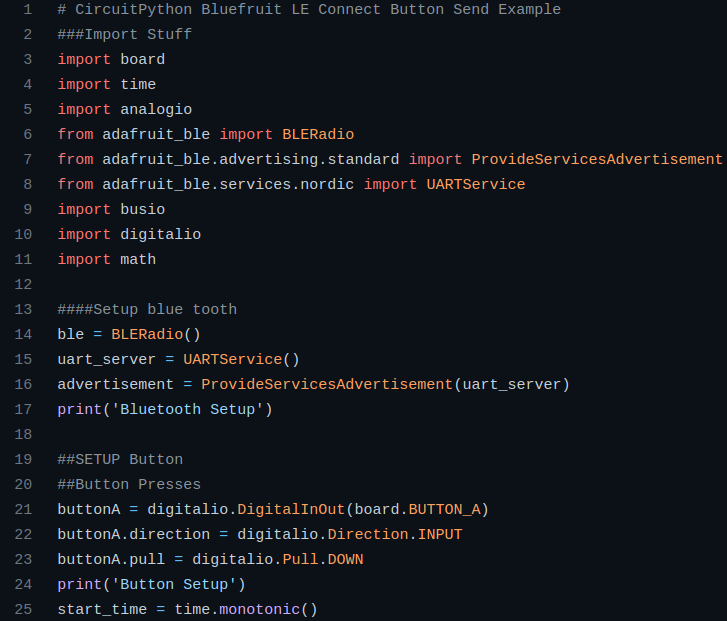
Lines 3-11 import a ton of modules. You’ll recognize many of them like analogio, and time but the new ones are the ones that say ble. These are the bluetooth modules required for the CPB. Lines 21-24 setup the button so we can log the button via bluetooth and Lines 14-17 kick of the BLERadio object and the UARTService() to send data. Line 25 also grabs the current time before the infinite while loop that way the timer starts closer to zero.
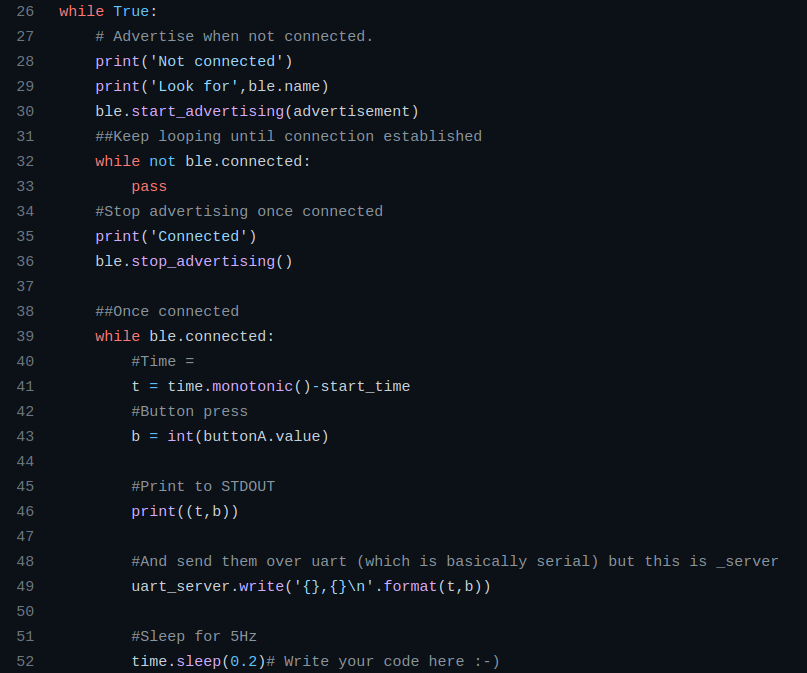
The code above is the infinite while loop which actually contains 2 while loops. Lines 28-33 prints the name of your bluetooth sensor and then starts advertising bluetooth to whoever is listening. It will then enter a while loop from 32-33 until bluetooth is connected. Once bluetooth is connected it will enter into the second while loop from line 39-52. In those lines 40-46 is responsible for taking all the necessary measurements and printing them to the serial monitor in Mu. In this case it’s only printing the current time and the value of the button as an integer. buttonA.value is either True or False and the int function converts that to a 0 or a 1. Line 49 then sends the data over bluetooth using the UART server. You’ll notice in this case the code is sending t,b by using the format variable and the 2 empty brackets. If you want to send more data you need to add more empty brackets and more variables to the format function. When you first save this script your CPB will not be connected and enter into an infinite while loop where it waits for your smart phone to connect. If you open your smart phone and open the Bluefruit Connect App the following screen will pop up.
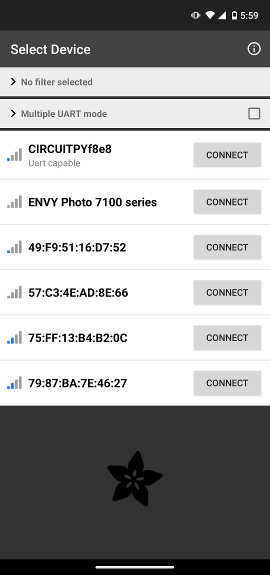
In this case there are numerous different bluetooth modules can be seen but the one you need to click is the one that says CIRCUITPYf8e8. You will have a different code after CIRCUITPY and you can figure out what your 4 digit code is by making sure you have the print(’Look for’,ble.name) in your code. Once you do that the CPB will begin sending time and the button press to your smart phone.
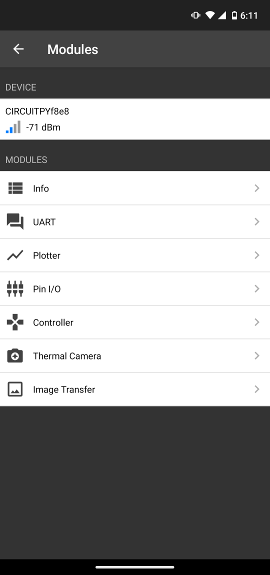
There are numerous items you can click. The Controller is very fun for creating a remote control robot but we’re only going to go over the UART and Plotter tabs. If you click the plotter tab you will be greeted with a live screen of the data being sent.
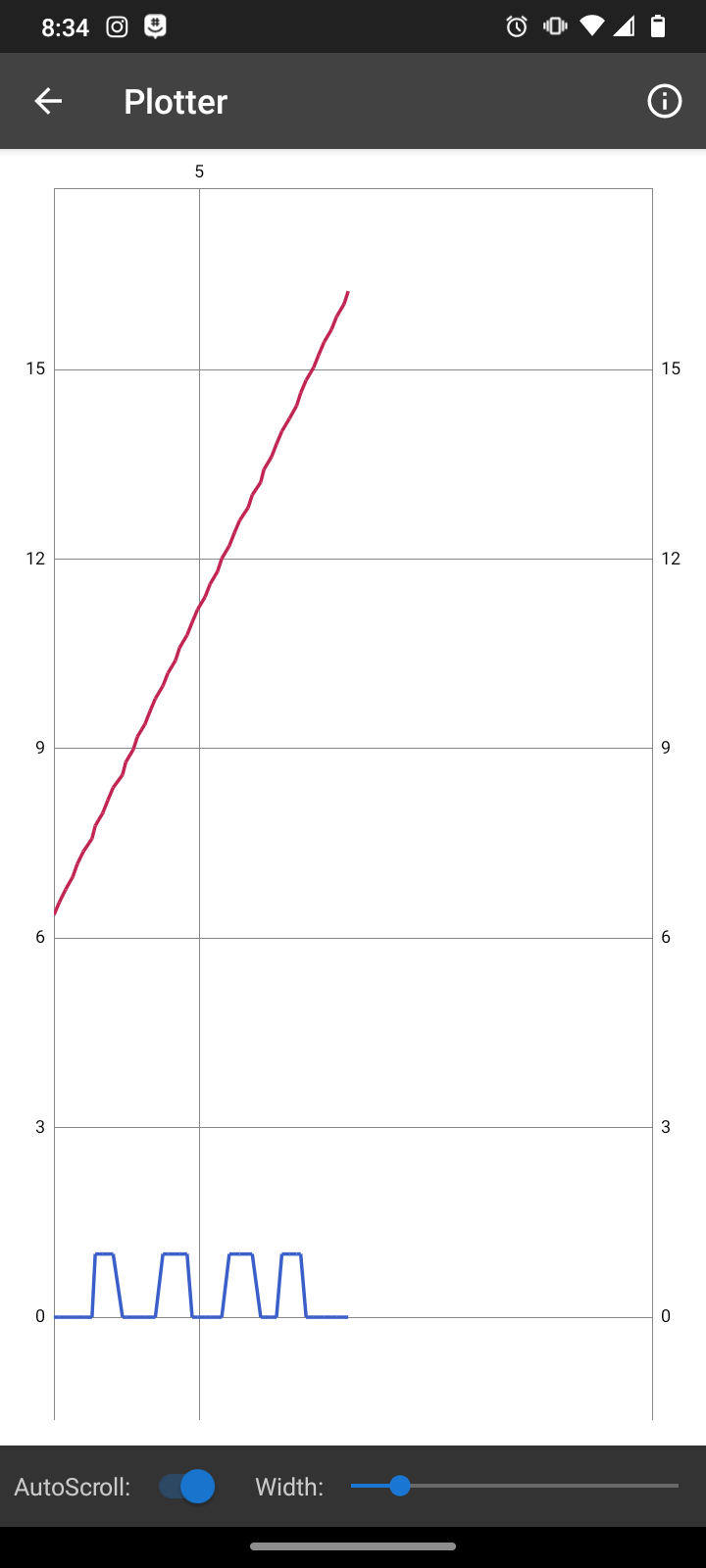
In the photo above you can see three data streams that is coming directly from the CPB. The red line is time and the blue line is the button value. Notice the blue line goes from 0 to 1 which means I pressed the button a few times. The red line is always increasing which kind of messes up the plotter so you can always go back to your code in Mu and just send your data. This is great for live demonstrations and for debugging if you need to see data from an experiment and you don’t have access to a laptop with Mu. If you hit the back arrow and then click UART you will see the raw data come in as text.
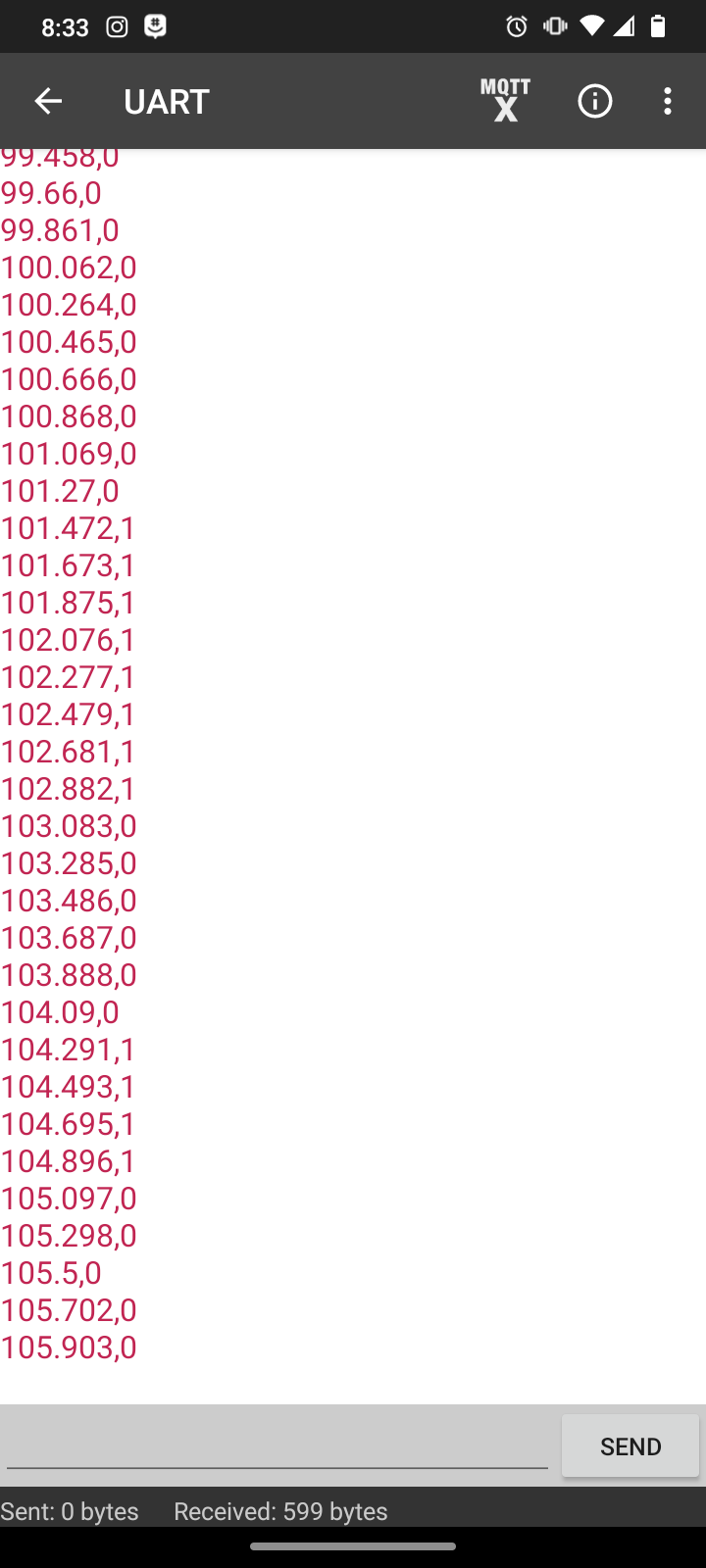
Again here you can see the 3 data streams separated by commas. The very neat thing with the UART tab is that you can click the three vertical dots in the upper right hand corner and click export to TXT. The easiest thing for me was to export the data to google drive and then download the data to my computer. Once I downloaded the TXT file to my computer and opened it the data file looked like this.
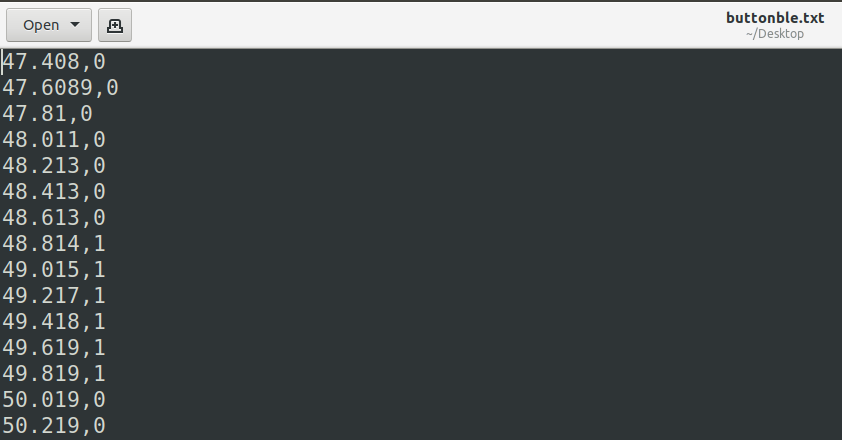
If you export the file as a CSV the data file will look completely different and it’s much more complicated to plot. If you export the data as a TXT file you just need to use the np.loadtxt command to read in the data. Note you might have commas in your data file. If there are commas just use the CTRL+H command and replace all commas with spaces or use the np.loadtxt(’buttonble.txt’,delimiter=’,’) command. Plotting your button presses should be as simple as the previous lab thus plotting the button is left as an exercise to the reader.

